
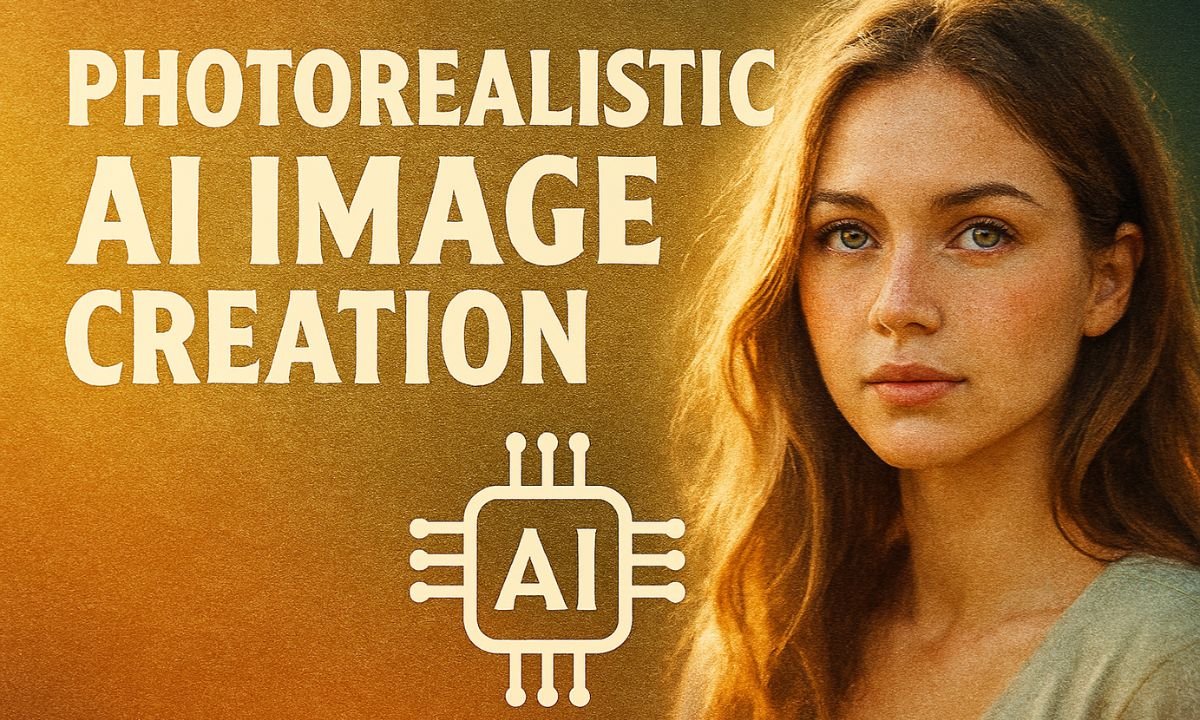
Photorealistic AI images are revolutionizing design, marketing, and digital art. These visuals mimic real-world lighting, texture, and depth so convincingly that they often rival actual photography. Whether you’re crafting product mockups, concept art, or editorial visuals, AI can help you generate stunningly lifelike images—if you know how to guide it.
1. Choose the Right AI Model
Not all AI tools are built for realism. Some specialize in stylized or abstract art. For photorealism, use models trained on high-resolution photographic datasets.
- Midjourney (v5+): Known for cinematic realism and nuanced lighting
- Stable Diffusion (RealVisXL, DiffusionBee): Offers fine control over detail and composition
- DALL·E 2: Good for realistic object rendering with prompt-based control
These platforms allow you to generate images from text prompts, often with customizable parameters.
2. Write Precision Prompts
Photorealism demands specificity. Vague prompts yield generic results. Include:
- Subject details: age, ethnicity, clothing, expression, pose
- Environment: lighting type (soft, harsh, golden hour), background, depth of field
- Camera specs: lens type, aperture, angle (e.g., “shot with 85mm lens, f/1.8, side profile”)
- Style cues: “realistic skin texture,” “natural shadows,” “high-resolution detail”
Prompt engineering is the key to realism. Think like a photographer.
3. Use Reference Images
Many platforms allow image-to-image generation. Upload a reference photo to guide composition, lighting, or pose.
- Sketch-to-photo: Convert rough drawings into realistic renderings
- Style transfer: Apply photorealistic textures to existing images
- Pose matching: Maintain consistency across multiple outputs
Reference inputs help AI stay grounded in real-world proportions and lighting.
4. Post-Process for Perfection
AI outputs often need refinement. Use editing tools to enhance realism:
- Photoshop or Lightroom: Adjust contrast, sharpness, and color grading
- Upscaling tools: Improve resolution without losing detail (e.g., Topaz Gigapixel)
- Retouching: Remove artifacts, smooth skin, refine edges
Post-processing bridges the gap between AI output and professional-grade imagery.
5. Avoid Common Pitfalls
Even advanced models can produce uncanny or flawed results. Watch out for:
- Asymmetrical faces or limbs
- Unnatural lighting or reflections
- Inconsistent textures (e.g., skin vs. fabric)
- Over-saturation or blur
Always review outputs critically and iterate with refined prompts.
Frequently Asked Questions
1. What is a photorealistic AI image?
It’s an image generated by artificial intelligence that closely mimics real-world lighting, texture, and detail—often indistinguishable from actual photography.
2. Which AI tools are best for photorealism?
Midjourney (v5+), Stable Diffusion (RealVisXL), and DALL·E 2 are popular choices for generating high-quality, lifelike visuals.
3. How do I write prompts for photorealistic results?
Use detailed descriptions including subject, lighting, camera specs, environment, and style cues. Precision leads to realism.
4. Can I use reference images with AI?
Yes. Many platforms support image-to-image generation, allowing you to guide composition, pose, or texture using a reference photo.
5. Do I need to edit AI-generated images?
Often, yes. Post-processing with tools like Photoshop or Lightroom helps refine contrast, sharpness, and remove artifacts for professional polish.
Conclusion
Creating photorealistic images with AI is part art, part engineering. With the right tools, detailed prompts, and thoughtful editing, you can produce visuals that rival traditional photography. AI doesn’t replace the artist—it amplifies their vision.