
Are you also looking for “How to use MozBar?”
MozBar is typically a free browser extension used for a website’s SEO (Search Engine Optimization).
This tool may help you effectively execute keyword research, analyze competitors’ ranking keywords, and determine the difficulty of ranking on the first page of Google.
In this blog, we’ve mentioned everything you must know about the MozBar tool. Let’s begin!
What is MozBar?
MozBar is an effective browser extension that is widely accepted and used in the SEO community. It enables you to measure, evaluate, and monitor the onsite and off-site aspects of your website.
This extension offers 55+ different SEO tools for varied businesses and individuals, allowing them to improve search rankings, drive traffic, and attain customers.
Simply put, MozBar can be called a software suite that provides a number of fresh market insights and helps businesses or website owners enhance their search visibility.
Key Features of MozBar
MozBar offers a number of features that may help you enhance your SEO game to the next level, as mentioned below.
1. Link Metrics
When you visit the website, the MozBar tool automatically appears and provides valuable information such as Page Authority (PA), Domain Authority (DA), and links to the website.
(i) Domain Authority (DA)
As the name suggests, DA showcases the strength and authority of the website’s domain. It ranges between 0-100. The higher THE score demonstrates, the higher the chances of a website ranking higher on the SERPs.
(ii) Page Authority (PA)
Similarly, the Page Authority, ranging from the score of 0-100, of a website showcases the strength and authority of a specific webpage. A higher PA score demonstrates a higher chance that a website will rank well on the SERPs.
(iii) Spam Score
The spam score typically showcases the percentage of a website that is close to getting penalized or banned by Google. This score ranges from 0-17. The higher score represents a higher chance of the website getting penalized by Google. Moreover, a penalized website has significantly lower chances of ranking on Google.
(iv) Link Metrics
This feature of the MozBar extension showcases the total number of links pointing to the respective webpage. It includes various links, such as internal, external, follow, and no-follow links. Using MozBar’s Link Metrics “count” may take you to the “Open Site Explorer” analysis of the webpage that can help you better analyze the backlink profile of any website. In this way, you can better understand the authority and ranking potential.
2. The “Page Analysis” Feature
The MozBar’s analysis tab allows you to gather in-depth information about the website, including its on-page elements, general attributes, link metrics, markup, and HTTP status. Using this information, you can potentially optimize your and competitor’s web pages.
(i) On-Page Elements
This feature allows you to determine information regarding various on-page elements, such as those mentioned below.
- URL
- H1
- H2
- Meta Description
- Meta Keywords
- Page Title
- Alt Text
- Bold/Strong
- Italic/em
(ii) General Attributes
In the MozBar’s General Attributes tab, you will find information about the following:
- Meta robots/Meta tags
- Page load time
- Rel=”canonical”
- Google cache URL
(iii) Link Metrics
The Mozbar Chrome extension also offers a Link Metrics tab that contains the following information:
- External Followed Links
- Total Links
- Linking Root Domains
- Page Authority (PA)
- Domain Authority (DA)
(iv) Markup
MozBar’s Markup tab provides information about the following.
- Schema.org
- Open Graph Protocol
- Twitter cards
- MIcroformats
3. The “Highlight Links” Feature
The “Highlight Links” is one of the most useful features of the MozBar Chrome extension. As the name suggests, this allows you to highlight all types of links on the webpage, including external links, internal links, do-follow links, and no-follow links.
You may even search for a specified keyword; this tool will easily highlight it across the webpage. This feature may help you better analyze your competitor’s website, allowing you to determine their website structure and backlinks.
4. The “Page Optimization” Feature
This is one of the most appealing features of the MozBar extension, which offers you a number of required page optimization suggestions.
Implementing the suggested measures may help you increase your domain authority and increase your website ranking on the SERP.
To use this feature, go to the “Page Optimization” tab and enter the required analytical keyword. Then, you may continue by clicking on the “Optimize” button.
After clicking on the “Optimize” tab, you may find three new tabs, as mentioned below.
(i) Summary
This tab showcases an optimization score of the respected website, ranging from 0-100. This evaluates the website on the basis of 27 different page optimization factors. Higher scores represent that your website is fairly optimized based on on-page factors.
(ii) Optimization Factors
In this tab, you may find several “fixes” that may be required for your site to rank on the targeted keyword. Here, the important fixes are highlighted in the red icon, and this has the most essential impact on the optimization score.
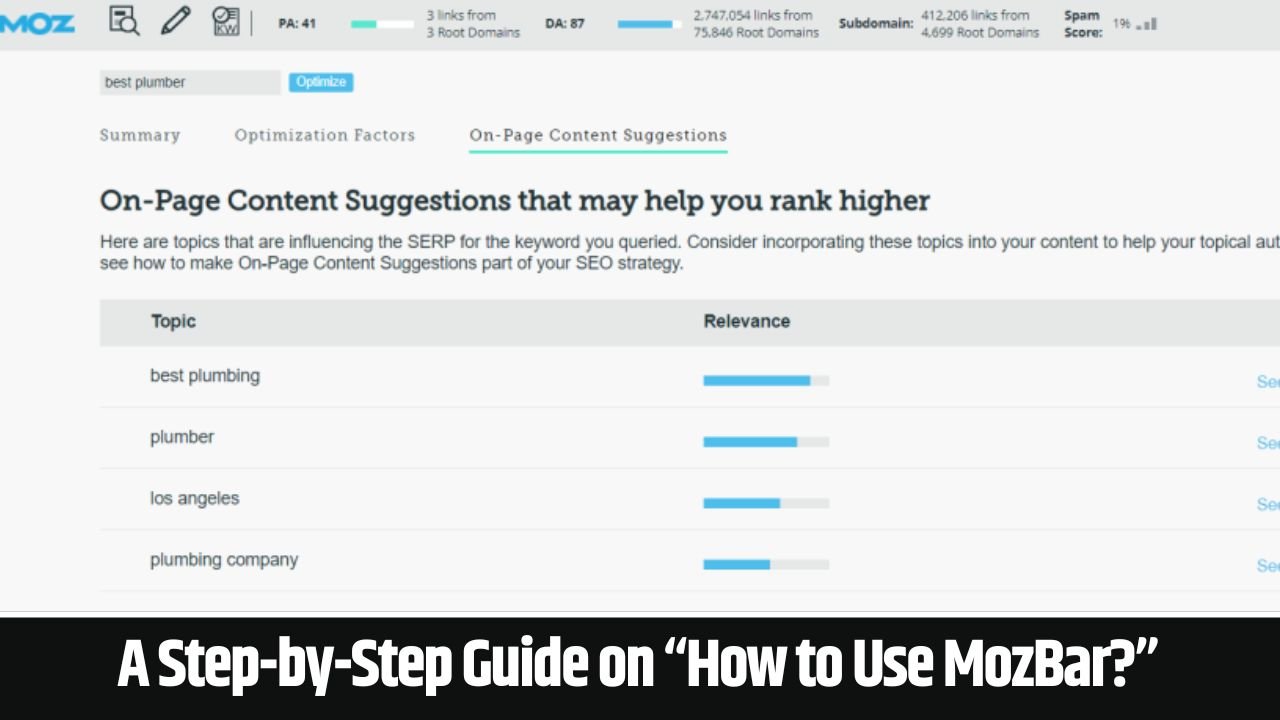
(iii) On-Page Content Suggestions
This tab suggests varied new topics and keywords related to the searched keywords. Implementing these suggested topics and keywords within your content may help you to further enhance your web page’s relevancy.
What is the Difference Between Free MozBar vs Paid MozBar?
MozBar comes up in both the free and paid versions. There is a significant difference in the list of features available for the MozBar Local (free) and MozBar Pro (Paid). You can clearly see the difference in the table mentioned below.
| MozBar Local | MozBar Pro |
| Features: Weekly crawl and rank tracking Competitive analysis Continual improvements Open site explorer Beta access to the news tools Moz toolbar On-page recommendations Keyword difficulty Pro Q&A forum Pro training webinars Online marketing guides Discounted Moz seminars Q&A forum | Features: Intuitive Suggestions Competitor Rank Tracking Spam Analysis Branded Reports Issue Prioritization Report Export Local Rankings Search Visibility Score Access to Proven metrics Accurate Volume Estimates Mobile Rankings Universal and Enhanced Search Rankings SERP Analysis Speed Crawl Link Opportunities Global Rank Tracking Competitive Link Metrics Fresh Links Page Optimization Page Optimization Checklist In-Depth SERP Reporting Automated and custom report Historical Reporting Competitive Reporting Crawl Diagnostics Link Profile Analysis New Issue Alerts Instant Site Recrawl List import/export Issue Ignore |
How to Use MozBar Chrome Extension?
Here’s a step-by-step process to install the MozBar Chrome extension on your device.
Step 1: Access Google Chrome and tap on the “three dots” located on the top-right corner of the screen. After that, you have to click on “More tools” and “Extensions.”
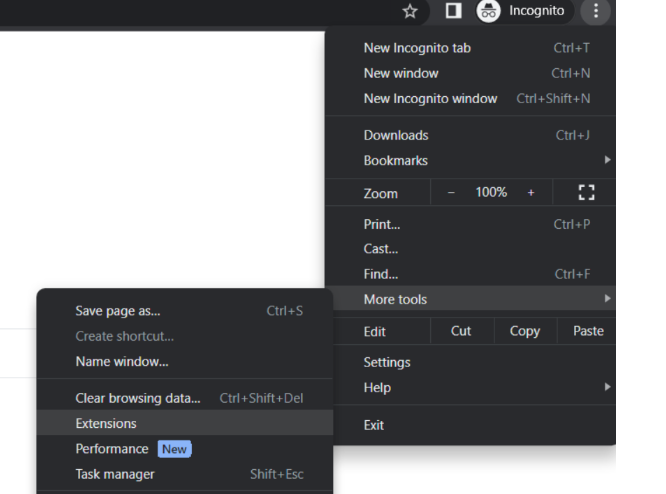
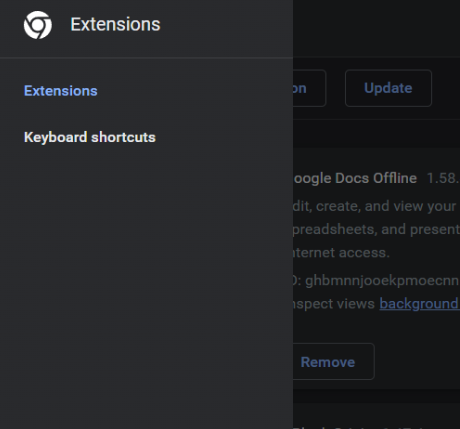
Step 2: Within the extension tab, you must access the Open Chrome Web Store.
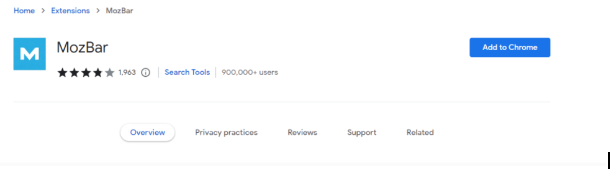
Step 3: Now that you’ve accessed the Open Web Store, you need to search for the “MozBar.” Click on the “Add to Chrome” button to install the extension.
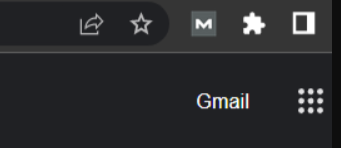
Step 4: Once the MozBar extension is installed, you may find a little icon, as shown in the picture below. Just click on it to turn on the MozBar.
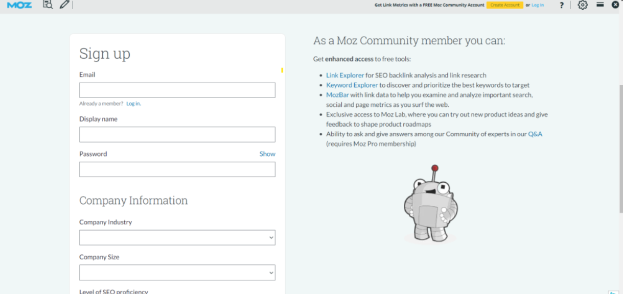
Step 5: Login into your already created Moz account or create a new community member account. Make sure to activate your account by verifying the email address.
Conclusion
In summary, MozBar is an all-in-one SEO solution for businesses and website owners looking to rank their sites. This software solution may help you thoroughly analyze your and your competitor’s website to understand and implement the best SEO strategies. We hope this blog helps you understand everything about MozBar.
Frequently Asked Questions :
How does MozBar work?
MozBar is an SEO-based tool that enables you to analyze and optimize a website or webpage through a single dashboard. It consists of various features, including link metrics, keyword difficulty scores, and the webpage’s SEO attributes, such as meta tags and page speed.
How to use MozBar step by step?
Here’s a step-by-step process for using Moz.
Open the official website page and access the Link Explorer. Paste the required URL here.
You may determine the website’s domain authority, ranking keywords, linking domains, and inbound links.
Moreover, this may also showcase the website’s recently gained or lost links.
How to use the MozBar tool?

Follow the simple steps mentioned below to use the MozBar tool.
1. Primarily, you must have MozBar downloaded and installed on your Chrome browser.
2. You might also be required to create a new free Moz Community account if you already don’t have one.
3. Now, just click on the MozBar’s “M” icon located in the top-right corner of the screen.
4. Make sure to install third-party cookies for moz.com using your browser settings.
How to activate Moz?
You must verify your email address in order to activate your Moz account. This is the only confirmation step.
Is Moz free to use?
MozBar comes in both free and paid versions based on the differences in features offered.